Setting up MEA-NAP
1. Download MEA-NAP folder from GitHub:
Navigate to the home page of the MEA-NAP GitHub repository using your web browser.

Once on the repository page, look for the green “Code” button. Click on it to reveal a dropdown menu.
In the dropdown menu, select the “Download ZIP” option. This will prompt GitHub to compress the latest version of the MEA-NAP repository into a zip folder.
Once the zip folder is downloaded, navigate to the location where you saved it and extract its contents.
2. Prepare your data for MEA-NAP:
Ensure that all relevant recordings that you want to analyze are saved in the same folder (no subfolders). This will allow MEA-NAP to seamlessly process and compare the data during the analysis.
Keep all the recording files intended for a specific batch analysis in a dedicated folder.
Maintain a concise and consistent naming convention for the files in the batch analysis folder.
As filenames and group names are included in many plots, it is important to keep the names concise and informative (e.g., NGN2230101_P1_A1_DIV14, where
NGN2 is the experiment code, 230101 is the date the culture was started, P1_A1 is the plate and well number, and DIV14 is the age).
Rename your files, if necessary, before converting your data to MATLAB format for MEA-NAP.
3. Convert your data to MATLAB format for MEA-NAP:
The MEA-NAP pipeline is currently optimized for single MEA recordings made on the Multichannel Systems MEA2100 60-channel MEA system and for multi-well plates using the Axion Maestro MEA System. However, these recordings must be converted to *.mat files first.
Converting .mcd files acquired from a Multichannel Systems MEA system with MC_Rack to .raw files:
Open MC_DataTool.
Select File - Open Multiple.
Choose .mcd files of interest.
Click “bin.”
Click “All.”
Ensure “Write header” and “Signed 16bit” are checked in the lower right.
Click “save” to save .raw files that are generated.
When done, click close.
Converting .msrd files acquired from a Multichannel Systems MEA system with Multi Channel Experimenter to .h5:
Open Multi Channel DataManager.
Click “Change” in the top right corner to change your input folder path to the folder containing your .msrd files.
Click “Refresh List” in the top right corner to update the list of .msrd files displayed.
Navigate to the bottom and click “Change” to adjust your output folder path, where the .h5 files will ultimately be stored.
Click “Export to HDF5” to convert .msrd files to HDF5 format (.h5 files).
When done, confirm that the .h5 files have been successfully saved in the output folder.
Click close.
Converting .raw and .h5 files acquired from Multichannel Systems or Axion Maestro MEA systems to .mat files for MEA-NAP:
Open MATLAB.
Open MEApipeline.m.
Start GUI by clicking green “Run” button in the Editor submenu at the top of your screen.
In the GUI, navigate to the File Conversion tab.
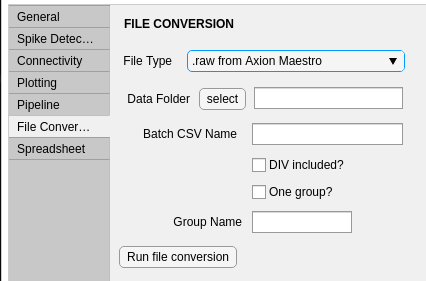
For File type, select “.raw from Axion Maestro” for Axion data, “.raw from Multichannel Systems” for MC Rack data, or “h5 from Multichannel Systems” for Multi Channel Experimenter data.
Click select button to select the Data Folder where your .raw data is. All of your data must be in the same folder.
Chose an informative name for your batch CVS file for this experiment.
If the age is included in the .raw filenames as “DIV” followed by the age in numbers (e.g., “DIV21”), check box to automatically have the age populated in the batch CSV file.
If you only have one group, check box “One Group?” and enter the desired group name in the box. The group name must start with a letter and should be short (e.g., NGN2).
Click Run file conversion. This may take some time depending on the number and size of the files. When it is done, “Conversion Complete” will appear in the MEA-NAP Status on the right side of the GUI.
4. Prepare batch analysis CSV file:
The File Conversion on the GUI will create a batch CSV file with a list of all the recording names in your data folder.
Open the batch CSV in another application that can read spreadsheets.
Ensure the following columns in the CSV file are filled out correctly for your data:
Recording filename: column containing filenames of the
*.matfiles for analysis, excluding extension (.mat).Age group: column containing the age (e.g., DIV group) (should be a number for each file).
Group: column containing the group (e.g., genotype such as WT or KO). Important, group names cannot start with a number.
Ground: column containing any electrodes that should be grounded for each file.
Here is an example spreadsheet in CSV format opened in Microsoft Excel.

Note: If you using Axion Maestro MEA data, rawConvert.m will generate a batch analysis csv file for you. However, you will still need to be modify the columns based on the descriptions above.
Congratulations! With the completion of the data preparation steps outlined above, your data is now ready for analysis using MEA-NAP.